

There are multiple ways to create a new Writer document:
From Scratch. To create a new empty document, click File › New › Text Document.
Using a Wizard. To use a standard format and predefined elements for your own documents, use a wizard. Click File › Wizards › Letter and follow the steps.
From a Template. To use a template, click File › New › Templates and open, for example, Business Correspondence. From the list of text document templates, select the one that fits your needs.
For example, to create a business letter, click File › Wizards › Letter. Using the wizard, you can easily create a basic document using a standard format. A sample wizard dialog is shown in Figure 10.1.
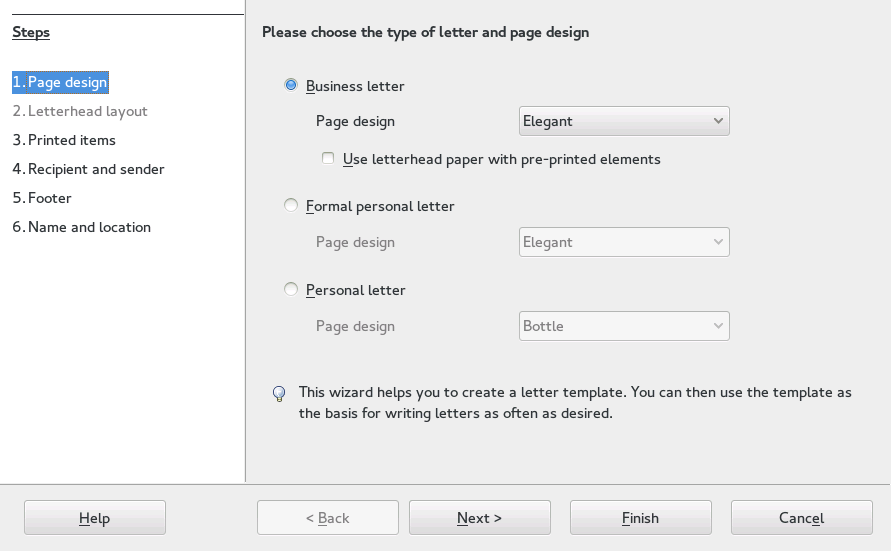
Figure 10.1: A LibreOffice Wizard
Enter text in the document window as desired. Use the tools for applying and changing styles or the tools for direct formatting to adjust the appearance of the document. Use the File menu or the relevant buttons in the toolbar to print and save your document. With the options under Insert, add extra items to your document, such as a table, picture, or chart.