

It is usually difficult to include complex mathematical formulas in your documents. To make this task easier, the LibreOffice Math equation editor lets you create formulas using operators, functions, and formatting assistants. You can then save those formulas as an object that can be imported into other documents. Math functions can be inserted into other LibreOffice documents like any other graphic object.
Note: Math is For Creating Mathematical Formulas
Math is not a calculator. The functions it creates are graphical objects. Even if they are imported into Calc, these functions cannot be evaluated.
To create a formula, proceed as follows:
Start LibreOffice Math.
Click File › New › Formula. The formula window opens.
Enter your formula in the lower part of the window. For example, the binomial theorem in LibreOffice Math syntax is:
(a + b)^2 = a^2 + 2 a b + b^2
The result is displayed in the upper part of the window.
Use the side bar panel Formula Elements or right-click the lower part of the window to insert other terms. If you need symbols, use Tools › Symbols to, for example, insert Greek or other special characters.
Save the document.
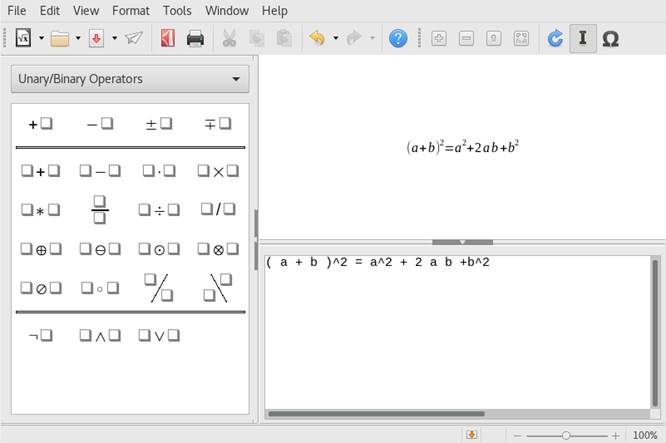
Figure 12.1: Mathematical Formula in LibreOffice Math
It is possible to include your formula in Writer, for example. To do so, proceed as follows:
Create a new Writer document or open an already existing one.
Select Insert › Object › OLE Object in the main menu. The Insert OLE Object window appears.
Select Create from file.
Click Search to locate your formula. To choose the formula file, click Open.
To be able to edit the formula later on its own, activate Link to file.
Confirm with OK. The formula is inserted at the current cursor position.