

The Library can be used to manage the properties (name and address location) for each bookmark and organize the bookmarks into folders and sections. It resembles Figure 13.3, “The Firefox Bookmark Library”.
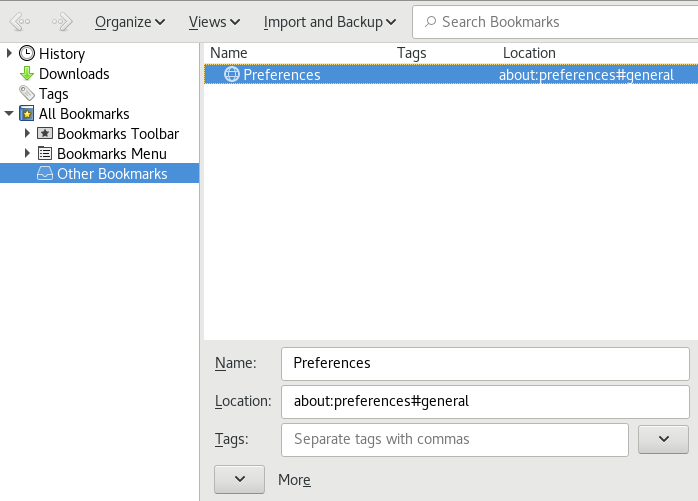
Figure 13.3: The Firefox Bookmark Library
To open the Library, in the menu bar, click Bookmarks › Show All Bookmarks. The library window is split into two parts: the left pane shows the folder tree view, the right pane the subfolders and bookmarks of the selected folder. Use Views to customize the right pane. The left pane contains three main folders:
History
Contains your complete browsing history. You cannot alter this list other than by deleting entries from it.
Tags
Lists bookmarks for each tag you have specified. See Section 13.4.2, “Tags” for more information on tags.
All Bookmarks
This category contains the three main bookmark folders:
Bookmarks Toolbar
Contains the bookmarks and folders displayed beneath the location bar. See Section 13.4.6, “The Bookmarks Toolbar” for more information.
Bookmarks Menu
Holds the bookmarks and folder accessible via the Bookmarks entry in the main menu or the bookmarks side menu.
Unsorted Bookmarks
Contains all bookmarks created with a single click the star in the location bar. This folder is only visible in the library and the bookmarks sidebar.
Organize your bookmarks using the right pane. Choose actions for folders or bookmarks either from the context menu that opens when you right-click an item or from the Organize menu. The properties of a chosen folder or bookmark can be edited in the bottom part of the right pane. By default, only Name, Location, and Tags are displayed for a bookmark. Click the arrow next to More to gain access to all properties.
To rearrange your bookmarks, use the mouse to drag them. You can use this to move a bookmark or a folder to a different folder, or to change the order of bookmarks in a folder.