

Now that the first-run configuration has finished, you are ready to begin using Evolution. This section sums up the most important parts of the user interface.
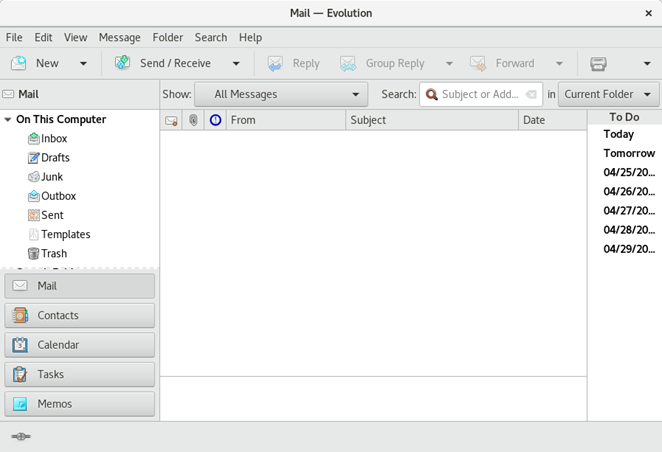
Figure 14.1: Evolution Window
Menu Bar
The menu bar gives you access to nearly all of the features of Evolution.
Folder List
The folder list gives you a list of the available folders for each account. To see the contents of a folder, click the folder name. The contents are displayed in the e-mail list.
Toolbar
The toolbar gives you fast and easy access to the frequently used features in each component.
Search Bar
The search bar lets you search for e-mails. You can filter e-mails, contacts, and calendar entries and tasks using different criteria: a label, a search term, and an account or folder. The Search bar can also save frequently used searches to a search folder.
Message List
The message list displays a list of e-mails that you have received. To view an e-mail in the preview pane, select the e-mail.
Shortcut Bar
The shortcut bar at the left lets you switch between folders and program components.
Statusbar
The statusbar periodically displays a message, or informs you about the progress of a task, such as sending e-mail.
On the far left, you will find the Online/Offline indicator. Click the Online/Offline indicator to switch between being using Evolution in online or offline mode.
Preview Pane
The preview pane displays the contents of the e-mails that are selected in the e-mail list.