

The GIMP toolbox always shows two color swatches. The foreground color is used by the paint tools. The background color is used much more rarely, but it can easily be switched to become the foreground color.
To change the color displayed in a swatch, click the swatch. A dialog with five tabs opens.
These tabs provide different color selection methods. Only the first tab, shown in Figure 17.2, “The Basic Color Selector Dialog”, is described here. The new color is shown in Current. The previous color is shown in Old.
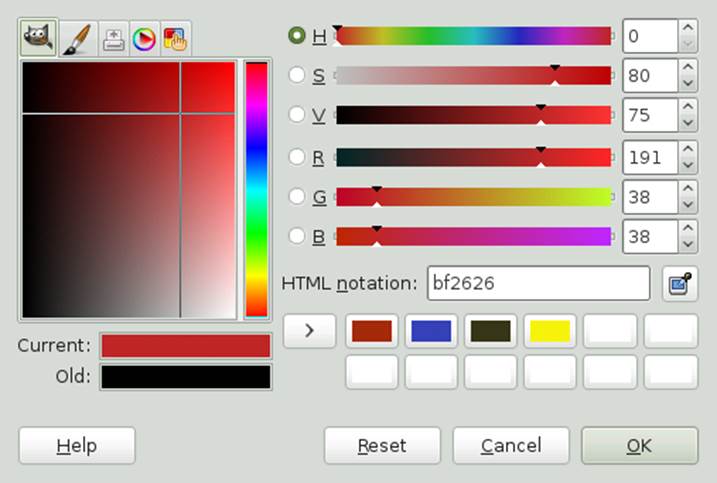
Figure 17.2: The Basic Color Selector Dialog
The easiest way to select a color is by using the colored areas in the boxes to the left. In the narrow vertical bar, click a color similar to the desired color. The larger box to the left then shows available nuances. Click the desired color. It is then shown in Current.
The arrow button to the right of Current allows saving colors. Click the arrow to copy the current color to the history. A color can then be selected by clicking it in the history.
A color can also be selected by directly entering its hexadecimal color code in HTML Notation.
The color selector defaults to selecting a color by hue. To select by saturation, value, red, green, or blue, select the corresponding radio button to the right. The sliders and number fields can also be used to modify the currently selected color. Experiment a bit to find out what works best for you.
When you are finished, click OK.
To select a color that already exists in your image, use the eye dropper tool. With the tool options, set whether the foreground or background color should be selected.