

You can customize LibreOffice to best suit your needs and working style. Toolbars, menus, and key combinations can all be reconfigured to help you more quickly access the features you use the most.
You can also assign macros to application events if you want specific actions to occur when those events take place. For example, if you always work with a specific spreadsheet, you can create a macro that opens the spreadsheet and assign the macro to the Start Application event.
This section contains simple, generic instructions for customizing your environment. The changes you make are effective immediately. This means you can see if the changes are what you wanted and go back and modify them if they are not. See the LibreOffice help files for detailed instructions.
To access the customization dialog in any open LibreOffice module, select Tools › Customize.
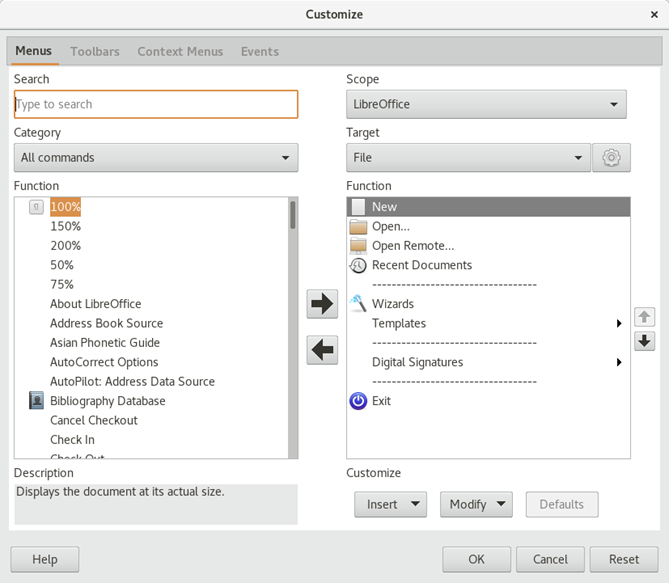
Figure 9.1: Customization Dialog in Writer
Note: Further Information
Click Help for more information about the options in the Customize dialog.